Checked November 12, 2026 against Google Home and Nest Help (support.google.com/googlehome). This is a documentation-based guide, not a hands-on test.
Quick verdict
The short version: put the device in pairing mode, open the Google Home app, tap Add, then Device, and scan the Matter QR code.
The part people miss: you need a Matter-enabled Google Home hub and a router with IPv6 turned on. Thread devices also need a Thread border router.
If it fails: restart the device, clear the app cache, restart your phone and try again.
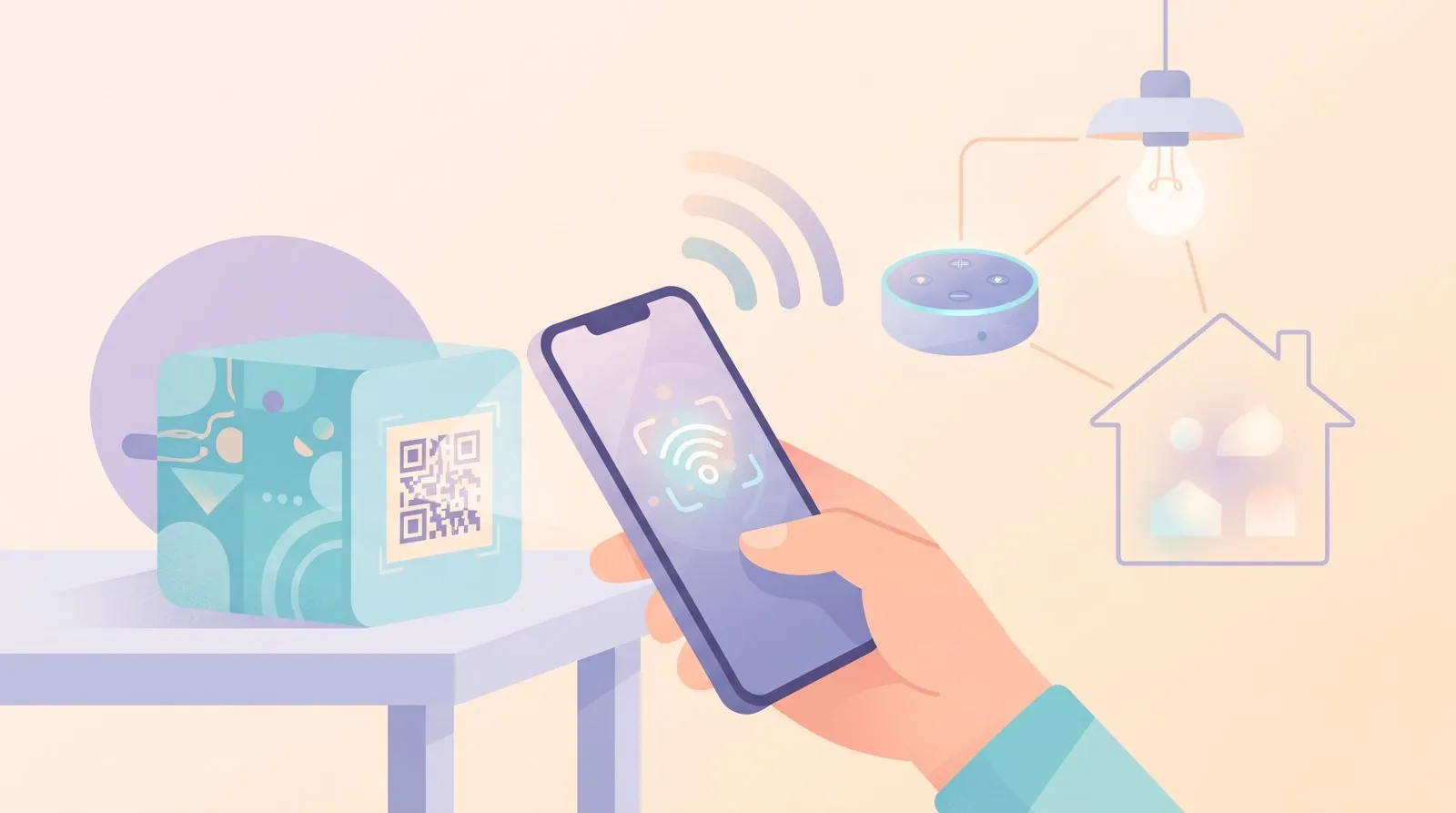
Illustration: AI Tool Audit, created with Google Gemini
On this page
What you need before you start
Matter is a shared standard, so one device can work with Google Home and other platforms. New to it? Our Matter explainer covers the basics. Google's help page lists these requirements for setting up a Matter device in Google Home:
| Requirement | What Google lists |
|---|---|
| Account | A Google Account |
| Network | Home Wi-Fi with IPv6 enabled on the router |
| Hub | A Matter-enabled hub for Google Home |
| Device | A Matter-enabled device (look for the Matter logo on the box) |
| Thread devices | A Thread border router to finish setup |
| Android phone | Android 8.1 or later, Google Play services 22.48.14 or later |
| iPhone or iPad | iOS 16.5 or later |
| Bluetooth | Bluetooth Low Energy 4.2 or higher on the phone |
| App | The latest Google Home app |
The help page does not name which hubs qualify. It points to a separate Google article on preparing your home for Matter. Check that article, or your speaker or display's product page, before you buy a device.
The IPv6 line trips people up. Many routers have an IPv6 setting in their admin page or app. If yours is off, turn it on before you begin.
Step by step: add a Matter device
Google gives the same steps for Android and iPhone.
- Power the device. Plug it in or fully charge it, switch it on, and put it in pairing mode. The maker's manual says how.
- Look for a pop-up. Your phone may show a notification offering to set up the device. You may need to open the Google Home app first.
- Tap Scan QR code and scan the Matter code on the device or its box.
- No pop-up? Open the Google Home app, tap Add, then Device, and scan the code.
- Code won't scan? Tap Add a different way, search for the device's brand, and pick your device.
- Finish in the app. Follow the prompts, then choose a room and give the device a name.
Keep the QR code. Many people stick it inside the manual or take a photo of it. You may need it again if you reset the device or move house.
Setting up in the maker's app instead
Some brands want you to set up the device in their own app first. Google says that is fine. If the maker's app asks whether to share the device with Google Home, accept. You can also turn on sharing later from the maker's app. If setup fails inside the maker's app, Google says to contact the manufacturer.
One more case: some brands sell both Matter devices and "Works with Google Home" devices. If only some of a brand's devices show up, the others may need to be linked through the maker's account instead of Matter.
Share a Matter device with another app
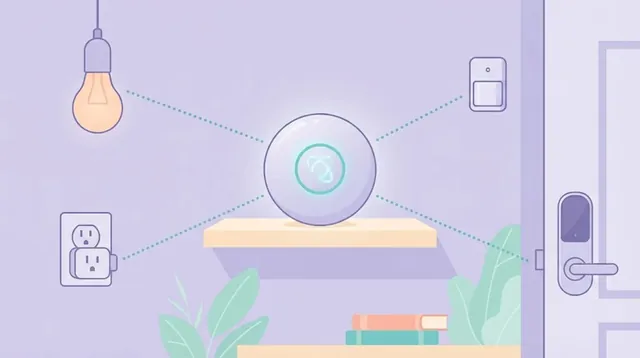
Matter lets more than one platform control the same device. Google calls these linked Matter apps and services. You need one Matter-certified hub for each platform that will control it.
- In Google Home, go to Home, then All devices, and touch and hold the device tile.
- Tap More or Settings, then Linked Matter apps & services.
- Tap Link apps & services and pick the other app (install it first). Or use Use pairing code or Share with QR code.
- In the other app, add a new device and enter the pairing code or scan the QR code.
After that, both apps can control it and show its status. This is handy in mixed homes; see our Alexa vs Google Home vs Apple Home comparison.
Remove or move a device
To remove a device, touch and hold its tile, tap More or Settings, then Remove device. Google warns this resets the device's settings and deletes its automations and routines. Factory reset the device before you add it to another home. To move it to a different home in your account, remove it, switch homes from your profile picture, and add it again.
If setup freezes or fails
Google's fix list, in order:
- Restart the Matter device using the maker's steps.
- Close the Google Home app.
- Clear the app cache. On most Android phones: Settings, Apps, Google Home, Storage & cache, Clear cache.
- Restart your phone.
- Start setup again.
If you get an error when adding from a maker's app, first confirm a compatible Google Home hub is set up in the Google Home app. If it still fails, a factory reset of the device may help, and the maker is the next contact.
How control works after setup
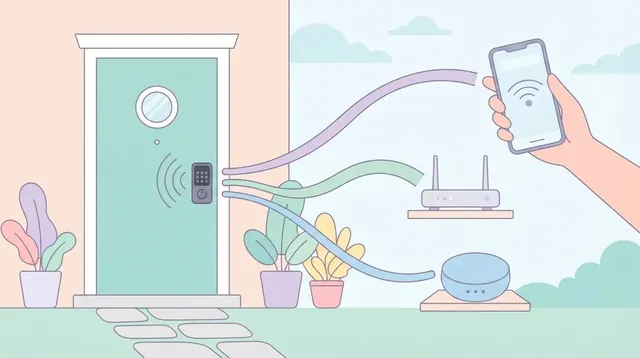
Google says that at home, commands go straight to the device over your Wi-Fi or Thread network without using the internet. Away from home, commands pass through the cloud to your Google Home hub, which checks the request and sends it to the device locally. That is one reason the hub matters.
Shopping for devices? See our smart plug picks, Matter smart bulbs and beginner smart home setup guide. Our price table tracks smart home subscriptions too.
FAQ
Do I need a hub to use Matter with Google Home?
Yes. Google lists a Matter-enabled hub for Google Home as a requirement, along with a Google Account and Wi-Fi with IPv6 enabled.
Why won't my Matter device pair with Google Home?
Check IPv6 on your router, that the device is in pairing mode, and that a compatible hub is set up. Then restart the device, clear the app cache, restart your phone and retry.
Can I use a Matter device with Google Home and another app?
Yes. Use Linked Matter apps & services in the device settings to share it. Each platform needs its own Matter-certified hub.
What if I can't scan the Matter QR code?
Tap Add a different way in the Google Home app, search for the device's brand and select your device.
Sources
- Google Home and Nest Help: Set up, manage, and control Matter-enabled devices with Google Home (checked November 12, 2026)