Checked November 12, 2026 against Apple Support articles on Matter accessories and home hubs. This is a documentation-based guide, not a hands-on test.
Quick verdict
Adding a Matter device takes a few taps: open Home, tap Add, choose Add Accessory, then scan the setup code or hold your iPhone near the device.
With iOS 18 or later, Apple says you can add and control Matter accessories without a home hub. A hub is still recommended, and you need one for remote control, sharing and automations.
Thread-based devices need a Thread border router, such as a HomePod mini or a recent Apple TV 4K, unless you have an iPhone 15 Pro or later.
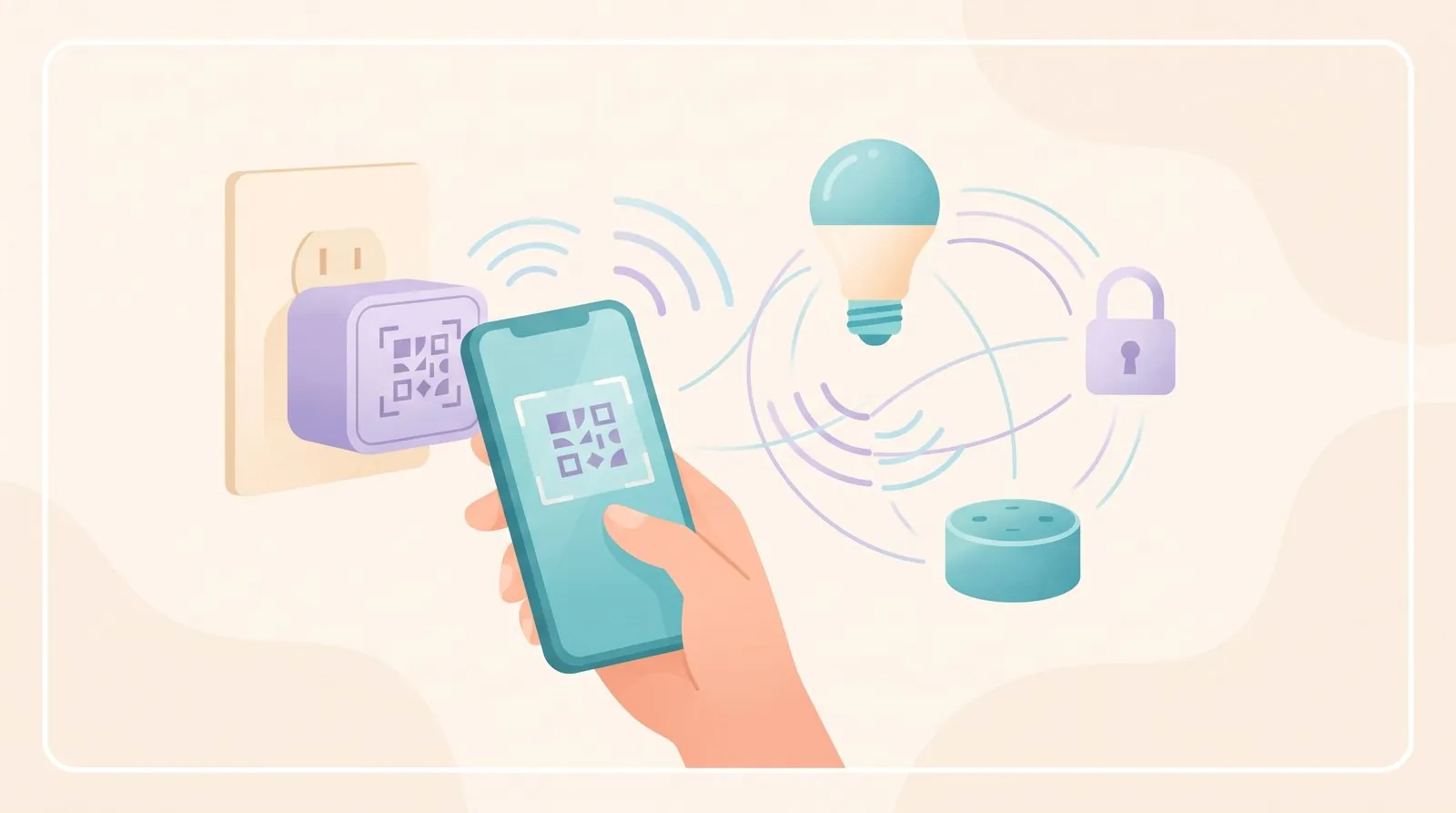
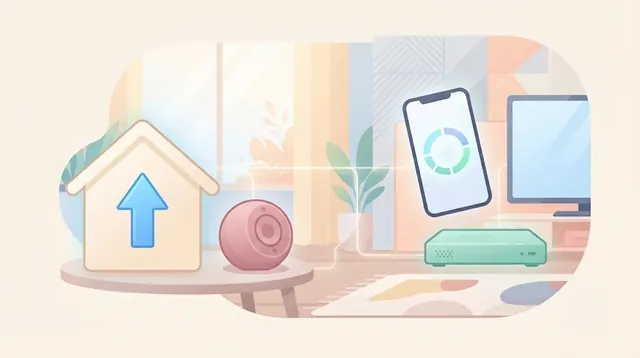
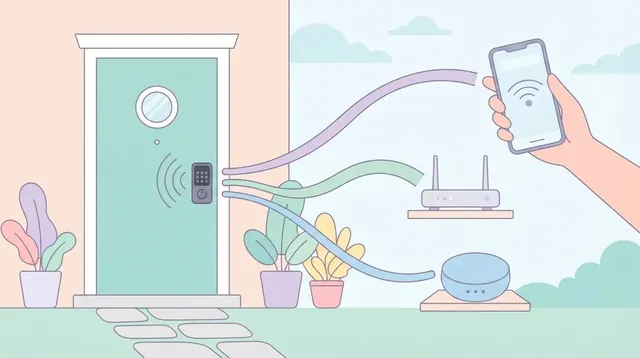
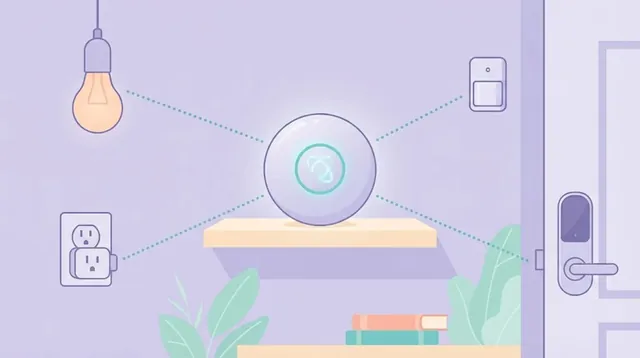
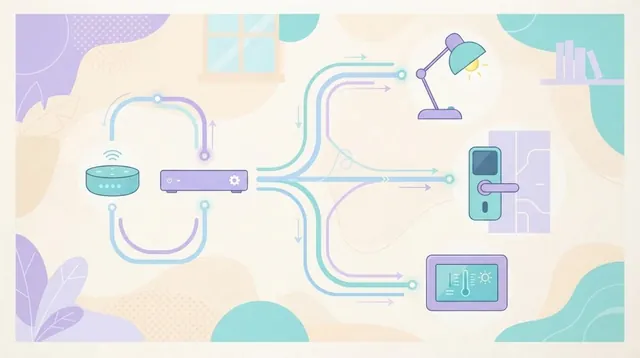
Illustration: AI Tool Audit, created with Google Gemini
On this page
Before you start
Matter is a shared smart home standard. Apple's article says the Home app can add Matter accessories that were already paired with other apps, so one plug or bulb can work in more than one app. If you are new to it, our Matter explainer covers the basics. For Apple Home, check these first:
- Update your iPhone or iPad to the latest iOS or iPadOS.
- Sign in with the Apple Account you want to use for your home.
- Check the device type. Apple lists support for lights, outlets, switches, locks, thermostats, air conditioners, blinds and shades, bridges, and motion, contact, light, temperature and humidity sensors.
- Find the setup code. Look on the device and its packaging for the code the Home app asks you to scan.
Do you need a home hub?
A home hub is an Apple device that stays at home and runs your accessories when you are away. HomePod and HomePod mini become hubs automatically. An Apple TV becomes a hub when you assign it to a room in its settings.
| Your setup | Can you add Matter devices? | What you miss |
|---|---|---|
| iOS 18+, no hub, Wi-Fi Matter device | Yes, per Apple's Matter article | Remote control, sharing and automations |
| iOS 18+, no hub, Thread device, iPhone 15 Pro or later | Yes; these iPhones can control Thread devices directly | Remote control, sharing and automations |
| Thread device, other iPhones | Needs a Thread-enabled hub or border router | Nothing, once the hub is set up |
| Home hub set up | Yes | Nothing; this is Apple's recommended setup |
Apple's two articles don't fully agree. The Matter article says iOS 18 removes the hub requirement. The home hub article still says a hub is required to add Matter accessories. In practice, if you already own a HomePod mini or Apple TV, set it up as a hub first and the question goes away.
Thread-enabled hubs Apple names include HomePod mini, HomePod (2nd generation), Apple TV 4K (3rd generation) Wi-Fi + Ethernet and supported third-party border routers.
How to add a new Matter device
- Plug in or power on the device and keep it close to your iPhone or iPad.
- Open the Home app and tap the Add button.
- Tap Add Accessory.
- Scan the setup code with the camera, or hold your device near the accessory if it supports that.
- Follow the onscreen steps to name the device and choose a room.
Some multipacks come with one QR code that covers several devices. Apple says scanning that code pairs them together, which saves time with bulbs or plugs bought in packs.
How to add a device that is already in another app
If your plug is already set up in another Matter-compatible app, such as Google Home, Alexa or the maker's app, Apple's steps let you add it without starting over.
- In the Home app, tap Add, then Add Accessory.
- Tap More options and select your Matter accessory.
Going the other way, from Apple Home into another app, Apple says to follow that app's own instructions for adding a new accessory and pick the one already paired. To compare ecosystems first, see Alexa vs Google Home vs Apple Home.
See and remove paired devices
Pairing keys for your Matter devices are stored in iCloud Keychain, which Apple says is end-to-end encrypted. To view them:
- Open Settings.
- Tap General, then Matter Accessories.
Tap a device to see its serial number and the services connected to it. You only see this menu once at least one Matter device is paired. From the same screen, tap Edit to remove a device in one of three ways: from Keychain only, from one connected service, or from all services. Removing it from a service means you can no longer control it from that service's app.
If something goes wrong
Apple's Matter article doesn't include a troubleshooting section. Its home hub article suggests updating and restarting your devices, keeping the hub powered on and on your home Wi-Fi, and turning on iCloud Keychain and two-factor authentication. Only the home's owner can add a HomePod or Apple TV as a hub. If a device still won't pair, check the maker's own support pages.
Which setup should you choose?
- One or two Wi-Fi plugs or bulbs: an iPhone on iOS 18 is enough to start.
- Thread devices, schedules or control away from home: add a HomePod mini or Apple TV 4K as a hub.
- A mixed household with Android and iPhone users: pair each device to Apple Home and a second app through Matter.
Shopping for devices? See our picks for smart plugs, Matter smart bulbs and smart locks, plus the smart home setup guide. AI tool prices live in the price table.
FAQ
Do I need a HomePod or Apple TV for Matter?
Not always. Apple says iOS 18 and later can add and control Matter accessories without a hub. You still need a hub for remote control, sharing and automations, and Apple recommends one.
What is a Thread border router?
It connects low-power Thread devices to your home network. HomePod mini, HomePod (2nd generation) and Apple TV 4K (3rd generation) Wi-Fi + Ethernet can do this, as can supported third-party routers.
Can a Matter device work with Apple Home and Alexa at the same time?
Yes. Apple supports adding Matter accessories that are already paired with other apps. Use More options when adding the accessory in Home.
Where are my Matter setup codes stored?
Pairing keys are stored in iCloud Keychain, which Apple says is end-to-end encrypted. You can view devices under Settings, General, Matter Accessories.
Sources
- Apple Support: Pair and manage your Matter accessories (checked November 12, 2026)
- Apple Support: Set up a home hub (checked November 12, 2026)