Checked November 12, 2026 against Apple Support articles on home hubs and Apple Home updates. This is a documentation-based explainer, not a hands-on test.
Quick verdict
You need a home hub for remote control, automations, sharing your home and adding Matter accessories in Apple Home.
What counts: a HomePod, HomePod mini, HomeView or Apple TV. iPad no longer works as a hub on the current version of Apple Home.
For Thread devices: pick a Thread-capable hub, such as HomePod mini or the Apple TV 4K (3rd generation) Wi-Fi + Ethernet model.
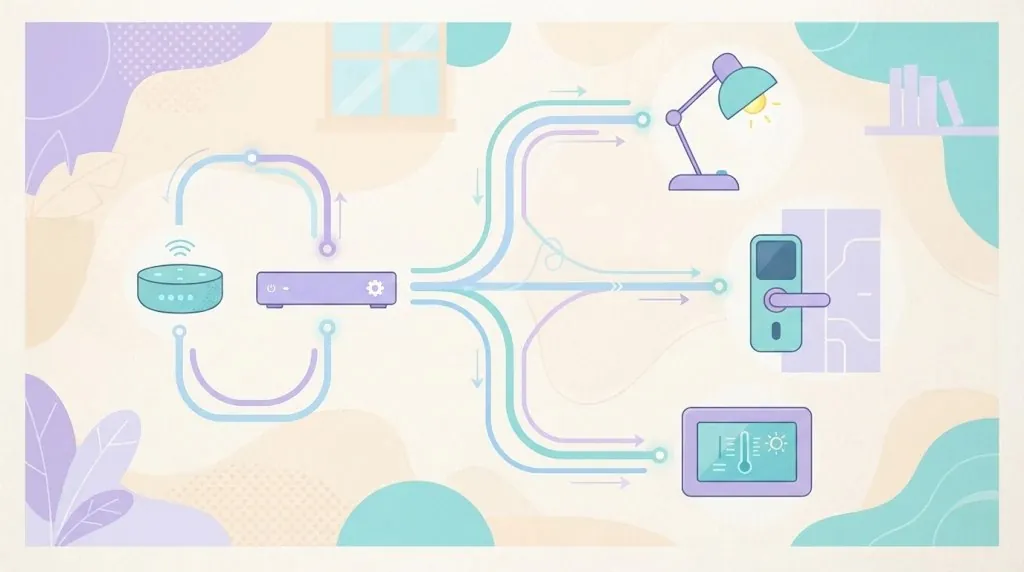
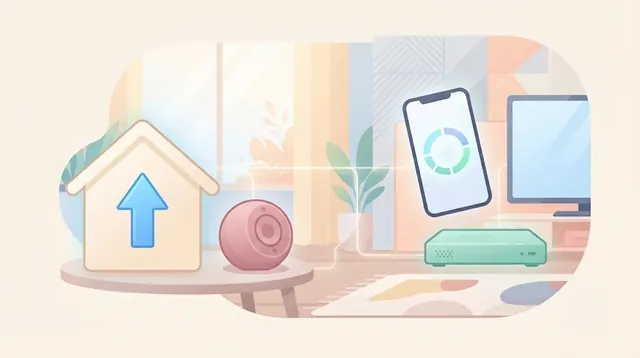
Illustration: AI Tool Audit, created with Google Gemini
On this page
What a home hub does
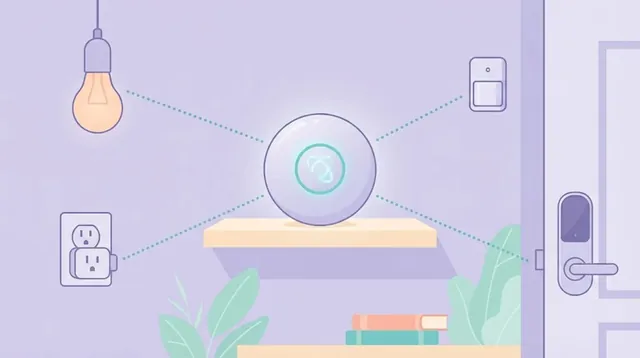
A home hub is an Apple device that stays at home, on your Wi-Fi, and runs your smart home in the background. Apple says a hub lets you control accessories when you're away, share access with others, and run automations. Without one, the Home app on your iPhone can only control accessories while you're nearby, and many of the most useful features are missing.
Features that need a hub
- Controlling accessories remotely, away from home
- Sharing control of your home with other people
- Automations, such as lights on at sunset
- Home notifications on the latest version of Apple Home
- Adding Matter accessories to the Home app
Apple is clear on the Matter point: you must set up a home hub before you can add Matter accessories. Our guide to adding a Matter device to Apple Home walks through the pairing steps once your hub is ready.
Which devices can be a home hub
| Device | Works as a hub? | How it becomes one | Thread |
|---|---|---|---|
| HomePod mini | Yes | Automatically during setup | Yes, Apple names it as a Thread-enabled hub |
| HomePod | Yes | Automatically during setup | Not stated in the article we checked |
| HomeView | Yes | Automatically during setup | Not stated in the article we checked |
| Apple TV | Yes | When you add it to a room in the Home app | Apple TV 4K (3rd generation) Wi-Fi + Ethernet or later is named as Thread-enabled |
| iPad | No, not on the current Home version | N/A | N/A |
Apple notes that some of these devices aren't sold in every country or region.
Why iPad stopped being a hub
For years an iPad left at home could act as a hub. That changed with Apple's newer Home architecture. Apple's update article says plainly that iPad isn't supported as a home hub on the latest version of Apple Home. You can still use an iPad to control your home in the Home app; it just can't be the always-on hub.
Apple also says support for the previous version of Apple Home ended on February 10, 2026, and that homes still on the old version may be upgraded automatically. If you relied on an iPad hub, you now need a HomePod, HomeView or Apple TV.
Software and account requirements
- Up-to-date software. Apple says devices that don't run iOS 16.2, iPadOS 16.2, macOS 13.1, tvOS 16.2 or watchOS 9.2 or later lose access to an upgraded home. Apple's hub article asks you to keep the HomePod, HomeView or Apple TV on the latest software.
- iCloud Keychain on.
- Two-factor authentication on your Apple Account.
- Home owner setup. Only the home's owner can add a HomePod, HomeView or Apple TV to set it up as a hub.
- At home and online. The hub must be in your home, on your home Wi-Fi and powered on.
Thread and Matter: pick the right hub
Many new Matter accessories, like sensors, locks and bulbs, use Thread, a low-power mesh network. Apple says Thread-enabled Matter accessories need a Thread-enabled hub. It names HomePod mini, the Apple TV 4K (3rd generation) Wi-Fi + Ethernet, or a supported third-party border router. Note that Apple specifies the Wi-Fi + Ethernet Apple TV model. Our Thread border routers explainer covers how these networks work, and Matter explained covers the standard itself.
How to set up a home hub
HomePod, HomePod mini or HomeView
Set the device up normally. Apple says it becomes a home hub automatically.
Apple TV
- Open Settings on the Apple TV.
- Go to AirPlay and Apple Home.
- Choose Room, then pick an existing room or add one.
Choosing which hub is in charge
If you own several hubs, Apple Home picks one to be active. To see or change it, open the Home app on iPhone, iPad or Mac, go to More, then Home Settings, then Home Hubs & Bridges. The active hub is at the top. Turn off Automatic Selection to choose one yourself.
If your hub isn't working
- Check that you are the home owner in Home Settings.
- On Apple TV, go to Settings, then Profiles and Accounts, and make sure your name is the Default User.
- Update the hub's software, restart it, and confirm it's at home, on Wi-Fi and powered on.
Which hub should you buy?
- HomePod mini if you want a small hub with Thread built in that also works as a speaker.
- Apple TV 4K Wi-Fi + Ethernet if you already want a streaming box and like a wired connection.
- Two hubs if you want a backup; Apple Home will choose the active one automatically.
Still choosing a platform? See Alexa vs Google Home vs Apple Home and HomePod mini vs Echo vs Nest Audio. For subscription costs across smart home and AI tools, check our price table.
FAQ
Do I need a home hub for Apple Home?
Not for basic control at home. You do need one for remote control, automations, sharing your home, notifications on the latest Home version, and adding Matter accessories.
Can an iPad be a home hub?
No. Apple says iPad isn't supported as a home hub on the latest version of Apple Home.
Which Apple TV works with Thread?
Apple names the Apple TV 4K (3rd generation) Wi-Fi + Ethernet model and later as a Thread-enabled hub.
How do I see which home hub is active?
In the Home app, go to More, then Home Settings, then Home Hubs & Bridges. The active hub appears at the top.
Sources
- Apple Support: Set up your home hub (checked November 12, 2026)
- Apple Support: Update Apple Home (checked November 12, 2026)